How to Get Notifications Working in YouTube MOD APK?
Picture this: you finally find that perfect YouTube MOD APK, but your notification bell stays eerily silent. You miss every new upload, every live stream, and the whole point of having the app feels defeated. If this sounds familiar, you’re not alone. Getting notifications to work properly is the single most common headache for MOD APK users. The issue usually isn’t with you.
It’s a complex dance between the modified app, Google’s underlying services like Firebase Cloud Messaging, and your device’s own permissions. The good news? It’s almost always fixable. I’ve walked through this exact frustration countless times, and the solution typically lies in a few specific, often overlooked settings.
By the end of this guide, you’ll have those crucial alerts popping up reliably, so you never miss a beat from your favorite creators again. Let’s dive into the real reasons your YouTube MOD APK notifications are failing and how to finally solve them.
Modified App Permissions and Limitations
One of the main reasons app notifications stop working is due to limited permissions. Unlike the official app, necessary system-level permissions may not be requested by modded versions.
This creates permission issues where the alerts cannot be pushed properly by the app. Some MODs skip the Google notification framework altogether, which creates silent errors in the background. If you’re looking for why you’re not getting notifications on YouTube MOD APK, it’s likely due to these skipped permissions during the installation process.
Battery Optimization Blocking Background Services
Modern Android systems are aggressive about saving battery. Unfortunately, this often comes at the cost of app functionality.
In many cases, battery optimization blocks YouTube Vanced alerts or background sync. Android places these MOD apps in a “restricted” state, cutting off their ability to check for new videos or comments in real-time.
These Android background restrictions especially impact devices running MIUI, OxygenOS, or Android 12+. If your modded YouTube app is not showing alerts, this is one of the first settings you should inspect.
Google Account Sync Issues
Most YouTube MOD APKs need MicroG or similar frameworks to access Google services. If there’s a mismatch in how your account is linked, a Google account not syncing correctly is another issue that silently breaks notifications.
Since notification delivery relies on Google Play Services, any misstep in account setup can block alerts completely. This explains why YouTube Revanced push notifications stop for many users after a reboot or app update.
APK Version or Build Bugs
You might be using a patched app that has not been fully tested, which leads to compatibility issues. Android restricts MOD APK notifications from unknown sources, and some older builds don’t respond well to newer Android APIs. Let’s simply say that notification failure in YouTube Revanced is often a bug in the build itself, not your phone settings.
Quick Fixes to Enable Notifications
Do not panic if you’re not receiving alerts from your modded YouTube app. There are a few simple changes that can quickly enable notifications in YouTube MOD and get things working again. There you go for the easiest fixes to try on the priority.
Allow All Permissions in App Settings
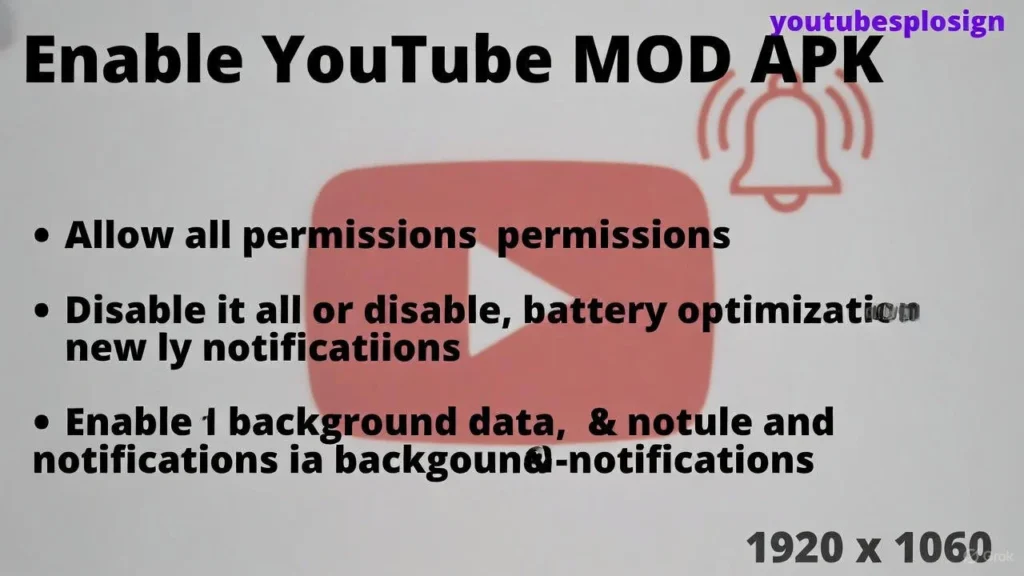
Go to your phone’s app settings, and allow all settings to YouTube Mod, settings like permissions for notifications, storage & background activity. This step alone can fix YouTube alerts for many users.
If you’re unsure how to allow YouTube MOD to run in the background, this is the setting that controls it.
Disable Battery Optimization for the App
Battery-saving features often block background services. This is especially common on newer Android versions.
To disable battery saver for YouTube MOD, go to your battery settings and set the app to “Unrestricted” or “Don’t optimize.” On some devices, it’s under “Special app access.”
This helps fix YouTube MOD push alerts in Android 13, where aggressive power modes kill background processes silently.
Lock the App in Recent Apps {MIUI, OneUI, etc.}
Devices running MIUI, OneUI, and similar ROMs, the system may close apps to save RAM storage. That’s the reason you need to keep YouTube Vanced active in RAM by locking it in your recent apps.
This method is also known as MIUI recent apps lock, ensure the app stays alive and continues checking for updates and new video alerts.
Enable Background Data and Notifications in System Settings
With all the above basic setting your system might still block the data. To fix this, go into your mobile data settings and allow background data access for YouTube MOD. Changing these options helps change system settings for YouTube notifications to work properly across all Android versions.
Advanced Solutions If Notifications Still Fail
These advanced fixes for YouTube MOD are for users who’ve done the usual troubleshooting and need deeper solutions.
Use MicroG Correctly (If Required by Your MOD)
Most YouTube MODs like Vanced or Revanced depend on MicroG to handle Google login and push services. If you skipped setup steps or installed it incorrectly, that should cause a notification issue.
To fix it, uninstall and reinstall MicroG. Ensure it’s the version recommended for your MOD. Grant all permissions during setup, especially notification and background access.
Install a Stable MOD APK Version (Avoid Beta or Patched Builds)
Always use a stable APK version from a verified source. Avoid early access releases or patched builds from unofficial forums or sources.
Some of the most persistent bugs, like delays or missing alerts, are tied to poorly built mods. Switching to a stable release often resolves them instantly.
Clear Cache and Data, Then Re-login
Corrupt data or settings conflicts can also break push alerts. It assists in clearing app cache and storage, then re-login with your Google account through MicroG.
This simple reset can resolve syncing problems and permission blocks. It’s the best approach if you’re looking for how to reset notification permissions for YouTube MOD or need to clear data to fix YouTube MOD sync problems.
Reinstall MOD APK + MicroG in Correct Order
Still nothing? Then it’s time for a full reinstall in the right sequence.
First, uninstall both YouTube MOD and MicroG. Then, reinstall MicroG and YouTube MOD APK in the correct order: MicroG first, then the app. This order ensures proper integration with system-level services.
Many users accidentally do this in reverse, which causes login loops, alert failures, or incomplete permission setups.
Using MicroG for Notification Support
To get notifications working in a YouTube MOD, you often need a bridge app, and that’s where MicroG comes in. If you’re missing alerts, an incomplete or broken MicroG setup could be the root cause. This section explains what MicroG does, how to install it properly, and how to fix common issues.
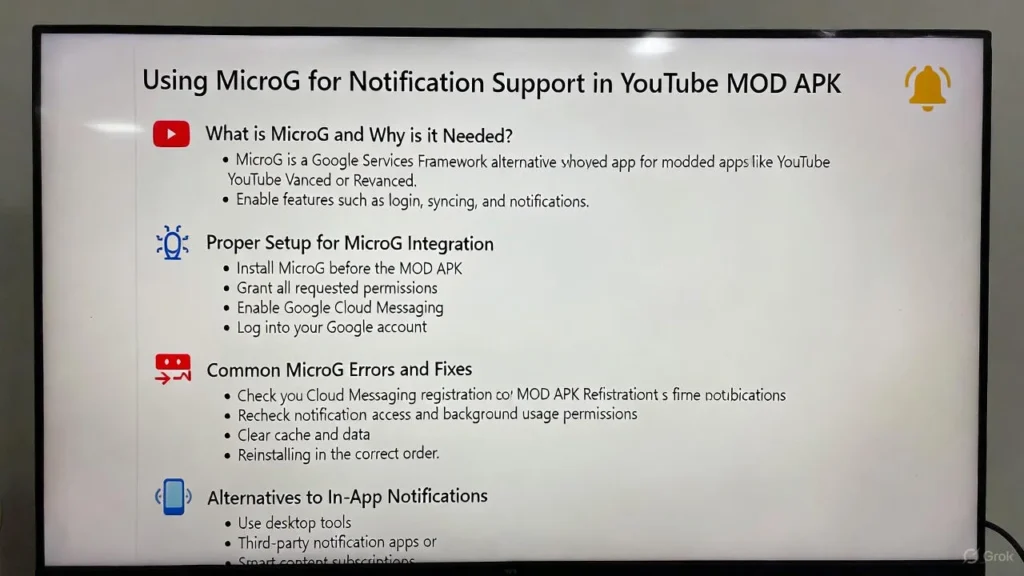
What is MicroG and Why It’s Needed
MicroG is a Google Services alternative that allows modded apps like YouTube Vanced or Revanced to function without the official Play Services. It’s lightweight, open-source, and enables features like login, syncing, and alerts.
Without MicroG, the app can’t communicate with Google’s push notification handler, which means you’ll miss video updates, comments, and channel notifications. That’s why MicroG for YouTube Vanced is essential, especially if you’re signed in with a Google account.
Still wondering, do I need MicroG for YouTube Revanced alerts? Yes, if your MOD build doesn’t come bundled with Google Play Services, MicroG is required for notifications to work at all.
Proper Setup Steps for MicroG Integration
A working MicroG install is more than just downloading an APK. To set it up right:
- Install MicroG before installing the MOD APK.
- Open MicroG and grant all MicroG permissions (location, storage, background usage).
- Enable Google Cloud Messaging (GCM) and check registration status.
- Log into your Google account through MicroG.
That’s the correct way to install MicroG correctly for Revanced and similar mods. This ensures all background sync and alert services are wired properly.
If you’re asking how to use MicroG to fix YouTube MOD notifications, this is the method that avoids 90% of common issues.
Common MicroG Errors and How to Fix Them
Sometimes, even a clean setup goes wrong. You may notice MicroG not delivering notifications or failing to sync in the background. If this happens:
- Go to MicroG > Cloud Messaging and ensure your apps are registered.
- Recheck notification access and background usage in system settings.
- Clear the cache data for both MicroG and the YouTube MOD APK.
To fix MicroG background sync for YouTube APK, you may need to toggle battery optimization off and restart your device.
Another trick: uninstall both apps and use MicroG for background services in modded YouTube by reinstalling it first. This correct install order can restore full notification access instantly.
Alternatives to In-App Notifications
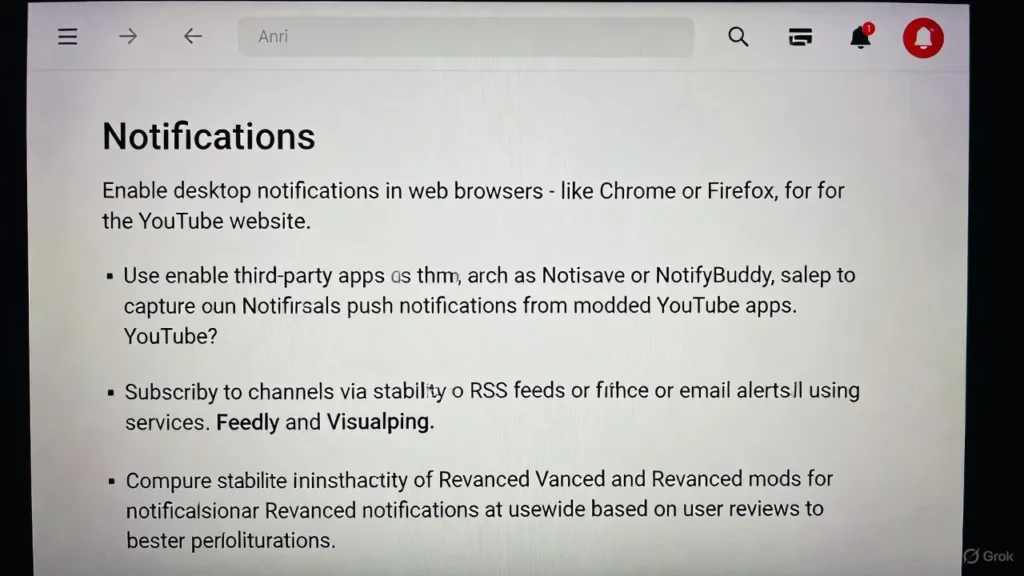
If in-app alerts still aren’t working, you’re not out of options. Several YouTube notification alternatives let you stay updated without relying on the app itself. Here’s how to get alerts using desktop tools, third-party apps, or smart content subscriptions.
Use YouTube Web with Desktop Notifications
One of the simplest workarounds is using YouTube in a browser. When you’re signed in via Chrome or Firefox, you can allow YouTube alerts on desktop without mobile app involvement.
There is IOS Version of YouTube MOD also available.
Just enable desktop notifications when prompted. You’ll get real-time alerts for new uploads, comments, and live streams even if your phone isn’t nearby. This is perfect if you’re at a computer often and need consistent updates.
It’s a clean way to get YouTube alerts without app notifications, and it works across platforms.
Third-Party Notification Apps (e.g., Notisave, NotifyBuddy)
Some users prefer using third-party alert apps for YouTube notifications. Apps like Notisave can capture push messages even from modded or broken apps. Others, like the NotifyBuddy app, create custom visual notifications when certain triggers are detected.
These tools are especially useful if your phone doesn’t support native notifications for MOD APKs. For example, NotifyBuddy for YouTube Revanced can light up your screen for new uploads, even if the original notification didn’t go through.
Looking for reliable third-party apps for YouTube MOD notifications? Start with these two; they’re proven and user-friendly.
Subscribe to Channels via RSS Feeds or Email Alerts
If you’re tired of system fixes, automation is your friend. You can track YouTube uploads with RSS by adding any channel’s feed to a reader like Feedly. This gives you instant updates in a clutter-free environment.
Prefer email instead? You can also set up email alerts for YouTube videos using services like Visualping or YouTube Subscriptions via Google Alerts.
And if you follow dozens of creators, RSS feed YouTube channels are a smart, scalable way to stay informed no app needed.
Which YouTube MOD APK Supports Notifications Best?
You may miss or hit the stable notifications if you’re using a modded YouTube app. Some builds work OK, while others struggle with background sync or alert delivery.
Vanced vs Revanced: Notification Stability
Due to the poor notification system Vanced in now being no more favorite of the YouTube users.
Revanced is being actively maintained, with proper setup and MicroG. Revanced is currently the safer bet for long-term use.
Reviews from Users on Notification Functionality
User feedback plays a vital role in tracking performance. Across forums and Reddit threads, Revanced consistently shows fewer user-reported bugs related to push alerts. Many users call it the most reliable MOD for YouTube alerts.
On the other side, Vanced users still loyal to the older app often rely on workarounds like reinstallation or third-party notifiers to stay updated.
Best Practices When Using MODs Safely
No matter which mod you choose, using it properly differences.
When done right, choosing the best modded YouTube app for notifications means less frustration and more content without missing a single upload.
Conclusion: Making Notifications Work Smoothly
Once the right settings and background permissions are in place, YouTube MOD APK notifications can work reliably without constant tweaking. This answers the core question of how to get notifications working in YouTube MOD APK and shows that missed alerts are usually a configuration issue, not a dead end.
The bigger picture is understanding how modified apps interact with Android’s notification system and Google services. If you followed along, you now have the confidence to fix YouTube MOD APK notifications and keep updates flowing in real time. Feel free to explore related guides to optimize your setup even further. When notifications work as expected, the app finally feels complete.